Headlamp and Kueue: check admission before adding nodes
News analysis, 17 October 2026: a new upstream walkthrough makes the admission boundary easier to inspect, without changing what a suspended Job means.
Quick answer
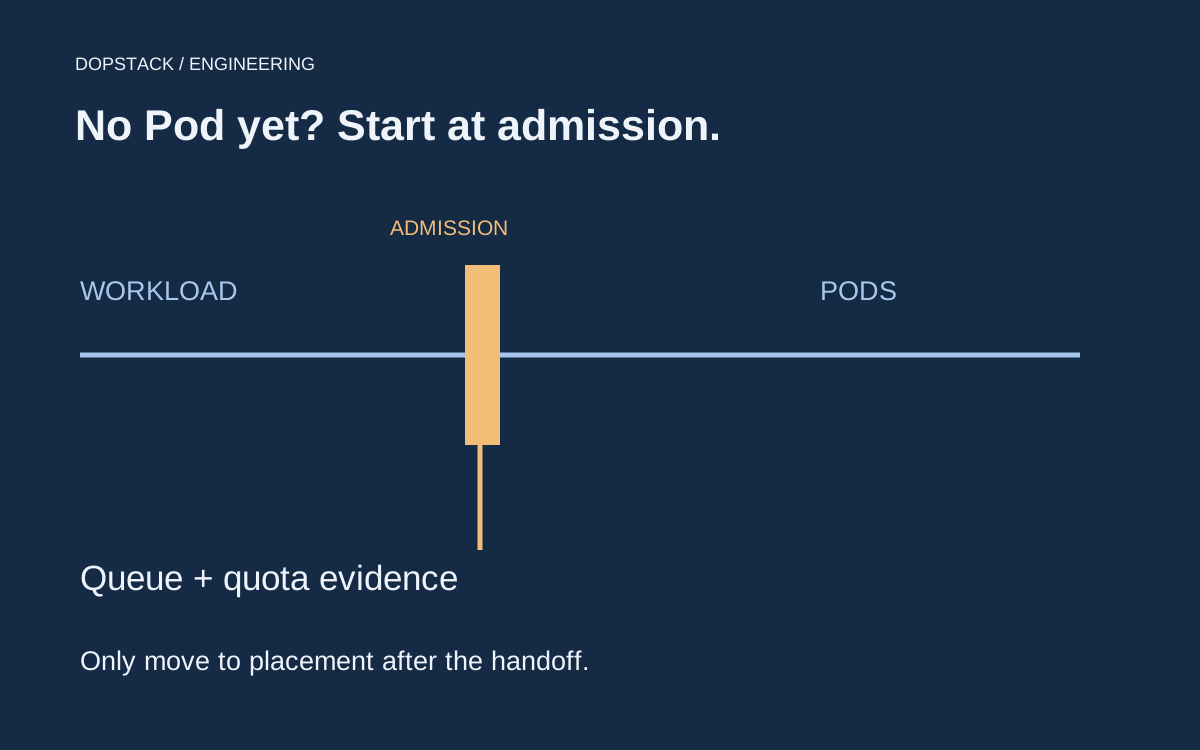
The Kubernetes project published a Headlamp walkthrough for tracing Kueue admission on 14 October 2026. Its practical lesson is to inspect the Workload and queue before assuming that a waiting Job needs more nodes. Check admission conditions first, then investigate Job and Pod scheduling only after the workload has been admitted.
On this page
A new Kubernetes walkthrough, published on 14 October 2026, shows how to trace Kueue admission through Headlamp. For operators, the useful distinction is between a workload waiting for admission and a Pod waiting for placement. Inspect the first blocked decision before adding capacity. This is a guide to existing admission behavior, not a new scheduler announcement. [1]
No Pod exists yet. Where do you look?#
Consider an illustrative team running queued batch jobs. A submitted Job waits, the application owner asks for more nodes, and the platform engineer finds no useful container logs. That can be the expected shape of an admission problem: the workload has not reached the point where investigating a running container will help. The first task is to find the associated Workload in the intended namespace.
The new guide matters because it connects that investigation. It follows admission conditions and the relevant queue relationships through Headlamp, while keeping exact object inspection available through the command line. The benefit is a clearer route to evidence. It is not permission to conclude that every waiting Job needs quota, nor a claim that a dashboard changes the admission policy. [1]
Conceptual illustration
Find the handoff before changing capacity
Submitted Job
Find its Workload
Admission
Read conditions and queue context
After admission
Inspect Job and Pod events
Runtime
Investigate the container after it starts
Before reproducing the workflow, check your installed Headlamp plugin, Kueue version and read permissions. A walkthrough published this week does not establish that an older installation has the same views. If the Workload list is empty, distinguish a wrong namespace, a Job that did not enter the expected queue and an account that cannot list the resource. An empty screen alone does not select among them.
Why can a waiting Job have no Pod to inspect?#
Kueue makes workload-admission decisions before the usual Pod-level investigation becomes useful. Its concepts documentation describes a Workload as the unit of admission and explains how Kueue represents a Job’s resource requirements. A suspended, unadmitted Job is therefore a different diagnosis from a Pod already waiting for placement on a node. [1][2]
Locate the first decision that has not completed. If the admission boundary has not been crossed, starting with application logs or scaling nodes can send the operator toward evidence that does not explain the queue’s decision. Preserve the object identity and condition message before choosing a capacity change.
| Observed state | Inspect next | Avoid assuming |
|---|---|---|
| Workload not admitted | Conditions, queue and quota context | That kube-scheduler rejected a Pod |
| Workload admitted but Job not progressing | Job state and events | That the queue is still the blocker |
| A Pod is Pending | Pod events and placement constraints | That adding generic capacity matches the request |
| A container starts then fails | Container termination and logs | That admission explains the runtime failure |
What should you follow through Headlamp?#
The upstream walkthrough follows a Workload’s admission and quota conditions, its LocalQueue and its ClusterQueue. It also points operators toward ResourceFlavor and Cohort information when relevant. Cohorts can share unused quota. Those links organize existing API evidence rather than replace the underlying control-plane decisions. [1]
A LocalQueue is namespaced and links the tenant-facing queue to a ClusterQueue. Kueue’s documentation explains that a namespace commonly represents a team or user. Our review therefore begins by confirming the namespace and intended queue, not merely by finding an object with a familiar name. The same display name in another namespace is not the same workload. [3]
Record the exact condition message in the incident note. Our recommendation is to pair it with the resource demand and queue configuration that were visible at the time. A later screenshot can show a healthy state after quota changed, so preserve the evidence that motivated the original conclusion.
How can you preserve the same trail without the UI?#
Use the actual object names found during the investigation. The following read-only command shapes mirror the queue relationships discussed in the upstream material; example names must be replaced. They do not modify quota or submit a workload. [1][3]
kubectl get workload example-workload -n example-team -o yaml
kubectl get localqueue example-local -n example-team -o yaml
kubectl get clusterqueue example-cluster-queue -o yaml
# After admission, follow the actual Job and Pod identities:
kubectl describe job example-job -n example-team
Record the Workload’s conditions and the LocalQueue-to-ClusterQueue relationship together. In the illustrative waiting case, a quota-reservation condition and its message may explain the blocker. Once admission succeeds, a remaining Pending Pod sends the investigation toward placement and Pod events. Preserve the transition so a later healthy snapshot does not erase why the workload originally waited.
The UI path and the command path should tell the same story. If they appear to disagree, first compare namespace, object identity, observation time and permissions. Do not use a screenshot from one cluster to explain an object from another. Those mundane context checks prevent a convincing dashboard view from becoming evidence for the wrong incident.
What should a team do with a quota explanation?#
Treat it as an ownership decision. Reducing a workload request, selecting an intended queue, changing an allocation or waiting for other work to finish can all be reasonable under different policies. Adding nodes alone may not change the queue allocation that controls admission. Conversely, a Pod already admitted can still need a specific placement capability that generic extra capacity will not provide.
Write down the requested resource shape and the policy boundary before requesting a change. For a multi-Pod workload, inspecting only one convenient container value can understate the total request. The Kueue concepts describe admission at the Workload level. Use the installed integration’s model and actual PodSets rather than assuming that every queued Job is a single identical Pod. [2]
How do you check the requested capacity?#
Kueue models a workload through PodSets and uses their resource requests in admission. Its documentation describes accounting across the requested Pod count. The operational check is the complete workload request, not just a convenient single-container or single-Pod value. Consult the concepts for the deployed integration and API version. [2]
Put the requested resource shape beside the queue’s relevant allocation and policy. Establish whether the request fits the intended queue and resource flavor. Do not reduce the problem to a total cluster capacity number when the admitting policy operates on a narrower quota or selection boundary.
If the request does not fit, document the decision rather than immediately changing policy. The right response might be a different request, a deliberate quota adjustment, a scheduling-policy review or waiting for capacity already assigned to another workload. Those choices have different owners and fairness consequences.
How should a platform team adopt this workflow?#
- Confirm the installed componentsVerify that the Kueue resources and Headlamp integration in your environment support the views being discussed. A published guide does not prove your installation contains the same features.
- Rehearse one known waiting caseUse a controlled test workload and retain its admission evidence. Confirm that an operator can explain the waiting state without making a production change.
- Follow the handoff after admissionDemonstrate when to move to Job and Pod views. The tool should make the boundary clearer rather than encourage every incident to remain in the queue dashboard.
- Keep a command-line pathRetain exact-object inspection for automation and reproducibility. The visual workflow complements those controls; it does not replace scripted evidence.
Adopt the investigation, then decide about the interface#
A useful trial is a known waiting workload in an isolated test context. Ask an operator who did not create it to identify the first blocker, preserve the exact evidence and explain when the investigation should move to Pods. If the team can already do that reliably with its current tools, the new guide may simply improve onboarding. A tool change is not mandatory.
For teams operating batch or AI workloads through Kueue, the article provides a timely prompt to review that handoff. For teams without Kueue, begin with the controllers and scheduling path actually installed. The practical outcome is an explainable waiting state and a named owner for the next decision—not another dashboard screenshot in an incident thread.
Headlamp and Kueue questions#
- Does the new guide announce a new scheduler?
- No. The news is the upstream walkthrough published on 14 October. It explains how to inspect Kueue admission through Headlamp. Do not infer a new scheduler release or changed admission semantics from that publication. [1]
- Should I add nodes when a queued Job is waiting?
- First establish which boundary is blocking progress. If the Workload is not admitted, inspect queue conditions and quota context. If a Pod exists and is Pending, inspect its scheduling evidence before deciding what capacity would help. [1][2]
- Why does the LocalQueue matter?
- It is the namespaced entry point connecting related workloads to a ClusterQueue. Confirming that relationship helps ensure the investigation uses the intended tenant and allocation context rather than a similarly named object elsewhere. [3]
- Does the UI replace exact object inspection?
- Our recommendation is to keep both. Use the linked visual path for an interactive investigation and preserve exact objects or command output for automation, review and incident evidence. Choose the representation that makes the blocked decision explainable.